Search for fc 26 dollars Visit Buyfc26coins.com for latest FC 26 coins news..EQ3v
211 results found
-
Where do I send Text Banking commands?
Text Banking commands should be sent to 454545. You should add 454545 to your mobile contacts and save it under Text Banking. Also, Text Banking commands should only be sent via SMS or text messaging on your mobile device. They cannot be sent through Facebook Messenger, WhatsApp or other chat apps.
Here is the information you can obtain by sending the following text commands:
- BAL – Balance for primary account in Text Banking
- Your text will include both the Current and Available balances.
- BAL ALL – Balance on all accounts within Digital Banking
- Your text will include only the Current balance which is the balance as of the end of the previous business day. It does not include transactions that are pending or on hold.
- LAST – Last 5 transactions for primary account in Text Banking
- TRANS (amount) ex. TRANS 200 – Transfer funds to primary account from secondary account in Text Banking
- STOP – Deactivate service
- HELP – Help keywords
Visit our Text Banking page for more information.
For assistance with Text Banking, please call Client Care at 1-800-731-2265.
- BAL – Balance for primary account in Text Banking
-
How do I download and install the Old National Mobile Banking App?
To find and download the Mobile App, just follow these steps.
- Depending on your device type, visit the App Store, Google Play or the Amazon Appstore.
- The above links should take you to the Mobile App. If not, search for Old National Mobile.
- Download the Mobile App to your phone or other device.
- Once downloaded, log in using your Digital Banking User ID and Password.
- You will be prompted to verify your identity using the phone number already registered in your Digital Banking.
You can also follow our brief tutorials:
For the App Store:
For Google Play:Learn more about the Mobile Banking App.
With the Mobile App, you can do the following and more:
- Check balances
- Transfer funds
- Pay bills
- Locate branches and ATMs
- Deposit checks
- Enroll in and view eStatements
- Access our Money Management personal financial management tool
- Access Mortgage Manager
There is no charge for use of the Mobile App.
If you need assistance with downloading the Mobile App, please call Client Care at 1-800-731-2265.
-
What are Card Controls and Alerts?
Card Controls and Alerts enable you to monitor and manage your debit card activity from within Online Banking and the Mobile App. There is no cost to use Card Controls.
Here are a few of the benefits of using Card Controls:
Monitor
Know exactly what is happening with your debit card, anytime and anywhere. Turn on alerts for Internet purchases, ATM transactions and more.Manage
Use Card Controls to immediately turn your debit card on or off in case it is misplaced or lost, or for any other reason. You can also set transaction limits, so all debit card transactions above a certain amount will be declined.Visit our Card Controls page for more information, including how to enroll.
Even if you use Card Controls to turn off your debit card, you should still contact us at 1-800-731-2265 to report any unauthorized activity.
Please note that Card Controls are for debit card transactions and HELOC cards only. They are not available for checks clearing or ACH transactions.
-
Where can I find my Old National checking or savings account number?
Within Online Banking, your full account number can be found through the following steps:
- After you log in to Online Banking, click on the account name for which you want an account number. Please remember that your account number will be different for each account.
- Clicking on the account name will take you to the Account History page. On this page, click on Account Details to reveal more information about your account. Your full account number is the ACH number.
- On the bottom right of the account details, you can print your account detail information or click the X to close the account details.
You can also find your full checking number in the following ways:
- On a mailed statement or eStatement within Online Banking. Your account number is on the upper right corner of the statement.
- At the bottom of a physical check or the bottom of a check image within Online Banking. You will see three sets of numbers at the bottom of the check. Your account number is the center set of 7-10 numbers. (Note that the set of numbers on the left, 086300012, is the Old National routing number.)
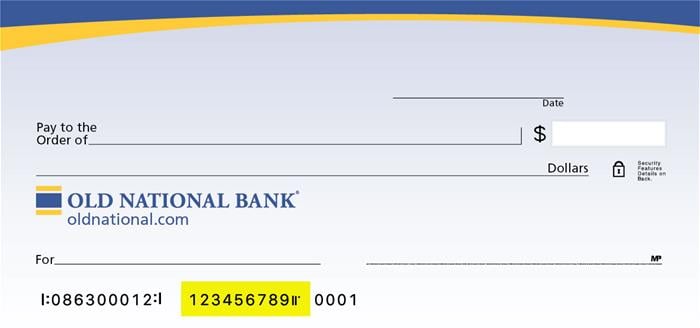
Visit any Old National banking center for assistance.
-
What are "cookies" and how do they affect my Digital Banking?
A "cookie" is a small text file created by a website that you visit, and it is then stored in your computer or phone browser, either temporarily for a single session only or permanently (until deleted). Cookies provide a way for the website to recognize you and keep track of your preferences.
Cookies (or lack of them) can impact your use of Digital Banking in several different ways including the following:
- If your browser is set to not accept cookies, or you clear your cookies, your device will no longer be recognized by your Digital Banking. In this case, you may be required to verify your identity by receiving a one-time passcode to the phone number or email address registered in your Digital Banking.
- In some cases, a cookie in your browser can pull up an old page on a website and prevent you from seeing an updated one. In this case you would need to clear cookies in your browser settings to see the new page.
Instructions for clearing or accepting cookies varies by device and browser. If you need assistance with either, please contact Client Care at 1-800-731-2265, and we would be happy to assist you.
-
How do I place a stop payment on a check or pre-authorized payment?
Please be aware that a stop payment fee of $38 per item applies. You can submit a stop payment request in one of several ways:
- For checks, log in to Online Banking. Go to Additional Services and choose Stop Payment. Follow the on-screen instructions. You can also place a stop payment for a check within our Mobile App.
- For checks and electronic transactions, visit any Old National banking center or call Client Care at 1-800-731-2265.
- When requesting a stop payment, you will need to provide the date, the amount, and the number of the item, together with the name of the payee.
- Once a stop payment is placed, and the form has been signed (when applicable), stop payment orders remain effective for up to six (6) months from the date authorized.
- Please note, that even though a stop payment request goes into effect immediately, you may still see the transaction attempting to clear your account within Online Banking. If this happens, rest assured that the transaction will be returned during our nightly processing of accounts.
-
How can I make a payment on my Old National mortgage loan?
Use Mortgage Manager within Online and Mobile Banking to make a payment. Our guide for Accessing Mortgage Manager through Online and Mobile can help you get started. Once you have accessed Mortgage Manager, there are several ways to make payments explained in the following guides:
- Make a One-Time Payment - How to Make a Mortgage Payment guide
- Enroll in Autopay - How to Enroll in Autopay guide
- Set up Flexible Payments - To learn more on how to enroll contact Mortgage Servicing at 866-853-3277.
Here are several other options for making mortgage payments:
- Visit any Old National banking center to make a payment.
- Mail a check to:
PO Box 3789
Evansville, IN 47736 - Not using Mortgage Manager? Use the Mortgage Loan Auto Pay form to set up automatic payments on a mortgage.
- Pay by phone by calling Mortgage Servicing at 866-853-3277. (A fee will be associated if you pay by phone.) Payments made by phone can only be accepted as an electronic check (eCheck) and not by credit card or debit card. You will need your routing number and account number to pay by eCheck.
If you need assistance with any of the above payment options, please contact Mortgage Servicing at 866-853-3277.
-
How can I make a mortgage payment in Mortgage Manager?
You can use Mortgage Manager to make your mortgage payment within Online and Mobile Banking. Our guide for Accessing Mortgage Manager through Online and Mobile can help you get started. Once you have accessed Mortgage Manager, there are several ways to make payments explained in the following guides:
- Make a One-Time Payment - Mortgage Manager: How to Make a Mortgage Payment guide
- Enroll in Autopay - How to Enroll in Autopay guide
- Set up Flexible Payments - To learn more on how to enroll contact Mortgage Servicing at 1-866-853-3277.
Here are several other options for making mortgage payments:
- Visit any Old National banking center to make a payment
- Mail a check to PO Box 3789, Evansville, IN 47736
- Not using Mortgage Manager? Use the Mortgage Loan Autopay form to set up automatic payments on a mortgage
- Pay by phone by calling Mortgage Servicing at 1-866-853-3277. (A fee will be associated if you pay by phone.) Payments made by phone can only be accepted as an electronic check (eCheck) and not by credit card or debit card. You will need your routing number and account number to pay by eCheck.
If you need assistance with any of the above payment options, please contact Mortgage Servicing at 1-866-853-3277.
-
After I submit a notice of error about my loan, how long will it take for me to hear back from Old National?
Within 5 business days from when we receive your request, we will mail you a letter to let you know that your request was received.
Then, within 30 business days after we receive your request, we will mail you a letter providing details on the outcome of our investigation. If we agree that an error has occurred, the error will be corrected and this will be included in our response.
Please note that if the error relates to providing an accurate payoff balance, we will respond within 7 business days.
If we determine that an error has occurred, we will mail you a letter explaining:
- The correction that was made
- The date confirming when the correction was made
- Information about how you can contact us if you need further assistance
If we discover that no error took place, we will mail you a letter explaining:
- That no error occurred
- The reason(s) for that determination
- Details about your right to ask for the documents we reviewed to determine that no error took place and how to submit that request
- Information about how you can contact us if you need further assistance
Please note that if we determine that additional time may be required to properly research your request, we may extend the review period by 15 business days. If this extra time is needed, we will mail you a letter before the end of the 30 business-day review period to let you know. The letter will explain the reasons why the extended review is necessary.
-
How can I know when my stimulus payment has been direct deposited to my account?
Visit the IRS Get My Payment (GMP) portal at https://www.irs.gov/coronavirus/get-my-payment to see if you can expect a 2021 Economic Impact Payment. The GMP portal will provide the date when your payment was or will be sent. If GMP reflects a direct deposit date and partial account information, then your payment has been deposited to that account.
If you haven't already, make sure you are enrolled in Old National Online and Mobile Banking. This will enable you to see a pending transaction from IRS TREAS, if the U.S. Treasury has sent your payment by ACH. You can monitor through Online and Mobile Banking to see when the deposit actually posts to your account making the funds available for use.
You can also set up text banking and automated alerts within Online Banking or push notifications (under settings) within our Mobile App, so you will be notified when a large deposit is made to your account or when your balance increases by a certain amount.