Search for https://www.galaxus.ch/en/sector/showdiscussion/www-snapchat-hack-visit-kunghaccom-srjcno2j-227651
475 results found
-
Where do I send Text Banking commands?
Text Banking commands should be sent to 454545. You should add 454545 to your mobile contacts and save it under Text Banking. Also, Text Banking commands should only be sent via SMS or text messaging on your mobile device. They cannot be sent through Facebook Messenger, WhatsApp or other chat apps.
Here is the information you can obtain by sending the following text commands:
- BAL – Balance for primary account in Text Banking
- Your text will include both the Current and Available balances.
- BAL ALL – Balance on all accounts within Digital Banking
- Your text will include only the Current balance which is the balance as of the end of the previous business day. It does not include transactions that are pending or on hold.
- LAST – Last 5 transactions for primary account in Text Banking
- TRANS (amount) ex. TRANS 200 – Transfer funds to primary account from secondary account in Text Banking
- STOP – Deactivate service
- HELP – Help keywords
Visit our Text Banking page for more information.
For assistance with Text Banking, please call Client Care at 1-800-731-2265.
- BAL – Balance for primary account in Text Banking
-
How do I download and install the Old National Mobile Banking App?
To find and download the Mobile App, just follow these steps.
- Depending on your device type, visit the App Store, Google Play or the Amazon Appstore.
- The above links should take you to the Mobile App. If not, search for Old National Mobile.
- Download the Mobile App to your phone or other device.
- Once downloaded, log in using your Digital Banking User ID and Password.
- You will be prompted to verify your identity using the phone number already registered in your Digital Banking.
You can also follow our brief tutorials:
For the App Store:
For Google Play:Learn more about the Mobile Banking App.
With the Mobile App, you can do the following and more:
- Check balances
- Transfer funds
- Pay bills
- Locate branches and ATMs
- Deposit checks
- Enroll in and view eStatements
- Access our Money Management personal financial management tool
- Access Mortgage Manager
There is no charge for use of the Mobile App.
If you need assistance with downloading the Mobile App, please call Client Care at 1-800-731-2265.
-
How can I find a certain Old National banking center or ATM?
There are several ways to find an Old National banking center or ATM through our website and our Mobile App:
On the website
Visit oldnational.com/locations to go to our Branch & ATM locator page. Enter the following information into the Search box.- To find a specific location, including hours, enter address (as much as you know), city and state of the location you are searching for. Select Search.
- To find the banking center or ATM closest to your current location, enter your location and choose Search. A listing of your nearest banking centers and ATMs will be provided. You can also choose to Get Directions.
In the Mobile App
- Open the App on your device. You do not have to log in. At the bottom of the Login screen, select Locations. You can use the Search at the top of the screen to find a branch or ATM by address, zip code or city.
- If you are already logged in to the Mobile App, go to More at the bottom right of the screen and then Locations under Contact Us.
Results of Location searches will be more accurate if you have enabled your mobile device to show your current location.
-
How can I make a payment on my Old National mortgage loan?
Use Mortgage Manager within Online and Mobile Banking to make a payment. Our guide for Accessing Mortgage Manager through Online and Mobile can help you get started. Once you have accessed Mortgage Manager, there are several ways to make payments explained in the following guides:
- Make a One-Time Payment - How to Make a Mortgage Payment guide
- Enroll in Autopay - How to Enroll in Autopay guide
- Set up Flexible Payments - To learn more on how to enroll contact Mortgage Servicing at 866-853-3277.
Here are several other options for making mortgage payments:
- Visit any Old National banking center to make a payment.
- Mail a check to:
PO Box 3789
Evansville, IN 47736 - Not using Mortgage Manager? Use the Mortgage Loan Auto Pay form to set up automatic payments on a mortgage.
- Pay by phone by calling Mortgage Servicing at 866-853-3277. (A fee will be associated if you pay by phone.) Payments made by phone can only be accepted as an electronic check (eCheck) and not by credit card or debit card. You will need your routing number and account number to pay by eCheck.
If you need assistance with any of the above payment options, please contact Mortgage Servicing at 866-853-3277.
-
Should I notify Old National if I plan to use my debit card while traveling?
Yes, if you will be using your debit card in areas where you do not typically travel, you should call Old National Client Care at 1-800-731-2265 or visit any Old National banking center to notify us of your travels before you leave. This will prevent your card from being blocked as a precaution due to unusual activity.
You can also add a travel memo to your card in online/mobile banking by selecting your debit card, then selecting “Manage Card”, then “Manage Travel Plans".
Mastercard® continues to monitor your debit card for suspicious or fraudulent activity while you are traveling. They may attempt to contact you to verify activity on the card, so be prepared to respond to such a call.
It is also a good idea to take phone numbers with you in case you need to report a lost or stolen debit card. You can report a lost or stolen card 24-hours a day by calling 1-800-731-2265 in the US or 1-812-422-2197 from outside of the US.
If you have questions about using your debit card while traveling, please contact Client Care at 1-800-731-2265.
-
How can I make a mortgage payment in Mortgage Manager?
You can use Mortgage Manager to make your mortgage payment within Online and Mobile Banking. Our guide for Accessing Mortgage Manager through Online and Mobile can help you get started. Once you have accessed Mortgage Manager, there are several ways to make payments explained in the following guides:
- Make a One-Time Payment - Mortgage Manager: How to Make a Mortgage Payment guide
- Enroll in Autopay - How to Enroll in Autopay guide
- Set up Flexible Payments - To learn more on how to enroll contact Mortgage Servicing at 1-866-853-3277.
Here are several other options for making mortgage payments:
- Visit any Old National banking center to make a payment
- Mail a check to PO Box 3789, Evansville, IN 47736
- Not using Mortgage Manager? Use the Mortgage Loan Autopay form to set up automatic payments on a mortgage
- Pay by phone by calling Mortgage Servicing at 1-866-853-3277. (A fee will be associated if you pay by phone.) Payments made by phone can only be accepted as an electronic check (eCheck) and not by credit card or debit card. You will need your routing number and account number to pay by eCheck.
If you need assistance with any of the above payment options, please contact Mortgage Servicing at 1-866-853-3277.
-
How can I find the phone number for a certain Old National branch?
There are several ways to find the direct phone number for an Old National banking center by using our website locator or our Mobile App:
On the website
Visit oldnational.com/locations to go to our Branch & ATM locator page. Enter the following information into the Search box.- To find a specific location, including phone number, enter the address (as much as you know), city and state of the location you are searching for. Select Search.
- A listing of locations will be provided, and each location will include the direct phone number.
In the Mobile App
- Open the App on your device. You do not have to log in. At the bottom of the Login screen, select Locations. You can use the Search at the top of the screen to find a branch or ATM by address, zip code or city.
- If you are already logged in to the Mobile App, go to More at the bottom right of the screen and then Locations under Contact Us.
- Tap the map pin for the location you are searching for. Then tap the white box that appears to see the location phone number.
Results of Location searches will be more accurate if you have enabled your mobile device to show your current location.
-
Where can I find my Old National checking or savings account number?
Within Online Banking, your full account number can be found through the following steps:
- After you log in to Online Banking, click on the account name for which you want an account number. Please remember that your account number will be different for each account.
- Clicking on the account name will take you to the Account History page. On this page, click on Account Details to reveal more information about your account. Your full account number is the ACH number.
- On the bottom right of the account details, you can print your account detail information or click the X to close the account details.
You can also find your full checking number in the following ways:
- On a mailed statement or eStatement within Online Banking. Your account number is on the upper right corner of the statement.
- At the bottom of a physical check or the bottom of a check image within Online Banking. You will see three sets of numbers at the bottom of the check. Your account number is the center set of 7-10 numbers. (Note that the set of numbers on the left, 086300012, is the Old National routing number.)
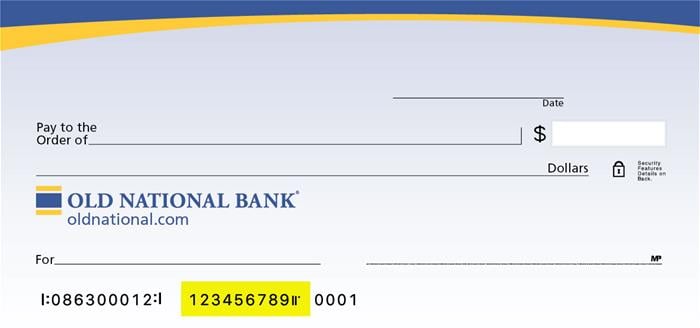
Visit any Old National banking center for assistance.
-
How do I place a stop payment on a check or pre-authorized payment?
Please be aware that a stop payment fee of $38 per item applies. You can submit a stop payment request in one of several ways:
- For checks, log in to Online Banking. Go to Additional Services and choose Stop Payment. Follow the on-screen instructions. You can also place a stop payment for a check within our Mobile App.
- For checks and electronic transactions, visit any Old National banking center or call Client Care at 1-800-731-2265.
- When requesting a stop payment, you will need to provide the date, the amount, and the number of the item, together with the name of the payee.
- Once a stop payment is placed, and the form has been signed (when applicable), stop payment orders remain effective for up to six (6) months from the date authorized.
- Please note, that even though a stop payment request goes into effect immediately, you may still see the transaction attempting to clear your account within Online Banking. If this happens, rest assured that the transaction will be returned during our nightly processing of accounts.
-
What should I do if I think someone has gained unauthorized access to my Digital Banking?
Please contact us as soon as possible by calling Client Care at 1-800-731-2265, Option 3, to report any suspicious activity on your account.
If you believe someone has gained unauthorized access to your Digital Banking or Mobile App, you should change your Digital Banking credentials. From the web browser, log in to Digital Banking. Go to My Settings in the upper right. Under Log In & Security, edit your User ID and Password. From the Mobile app, Go to My Settings in the upper right. Tap my settings, edit your User ID and Password.
If you believe the unauthorized activity may be a result of someone using your debit card, you can turn your card off (and back on again) with our Card Controls feature in Online Banking and the Mobile App.
Of course, prevention is the best approach. To find information on steps you can take to protect against having your account or information compromised, visit our security center.