Search for https://www.galaxus.ch/en/sector/showdiscussion/www-snapchat-hack-visit-kunghaccom-srjcno2j-227651
90 results found
-
How can I find the phone number for a certain Old National branch?
There are several ways to find the direct phone number for an Old National banking center by using our website locator or our Mobile App:
On the website
Visit oldnational.com/locations to go to our Branch & ATM locator page. Enter the following information into the Search box.- To find a specific location, including phone number, enter the address (as much as you know), city and state of the location you are searching for. Select Search.
- A listing of locations will be provided, and each location will include the direct phone number.
In the Mobile App
- Open the App on your device. You do not have to log in. At the bottom of the Login screen, select Locations. You can use the Search at the top of the screen to find a branch or ATM by address, zip code or city.
- If you are already logged in to the Mobile App, go to More at the bottom right of the screen and then Locations under Contact Us.
- Tap the map pin for the location you are searching for. Then tap the white box that appears to see the location phone number.
Results of Location searches will be more accurate if you have enabled your mobile device to show your current location.
-
How can I make a mortgage payment in Mortgage Manager?
You can use Mortgage Manager to make your mortgage payment within Online and Mobile Banking. Our guide for Accessing Mortgage Manager through Online and Mobile can help you get started. Once you have accessed Mortgage Manager, there are several ways to make payments explained in the following guides:
- Make a One-Time Payment - Mortgage Manager: How to Make a Mortgage Payment guide
- Enroll in Autopay - How to Enroll in Autopay guide
- Set up Flexible Payments - To learn more on how to enroll contact Mortgage Servicing at 1-866-853-3277.
Here are several other options for making mortgage payments:
- Visit any Old National banking center to make a payment
- Mail a check to PO Box 3789, Evansville, IN 47736
- Not using Mortgage Manager? Use the Mortgage Loan Autopay form to set up automatic payments on a mortgage
- Pay by phone by calling Mortgage Servicing at 1-866-853-3277. (A fee will be associated if you pay by phone.) Payments made by phone can only be accepted as an electronic check (eCheck) and not by credit card or debit card. You will need your routing number and account number to pay by eCheck.
If you need assistance with any of the above payment options, please contact Mortgage Servicing at 1-866-853-3277.
-
Where can I find my Old National checking or savings account number?
Within Online Banking, your full account number can be found through the following steps:
- After you log in to Online Banking, click on the account name for which you want an account number. Please remember that your account number will be different for each account.
- Clicking on the account name will take you to the Account History page. On this page, click on Account Details to reveal more information about your account. Your full account number is the ACH number.
- On the bottom right of the account details, you can print your account detail information or click the X to close the account details.
You can also find your full checking number in the following ways:
- On a mailed statement or eStatement within Online Banking. Your account number is on the upper right corner of the statement.
- At the bottom of a physical check or the bottom of a check image within Online Banking. You will see three sets of numbers at the bottom of the check. Your account number is the center set of 7-10 numbers. (Note that the set of numbers on the left, 086300012, is the Old National routing number.)
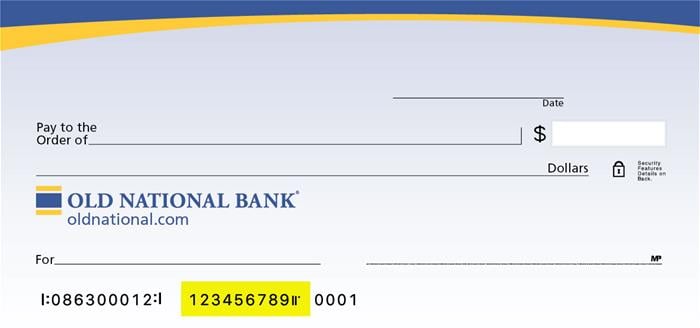
Visit any Old National banking center for assistance.
-
How do I set up eStatements for my Old National loan account?
eStatements are online, electronic copies of your account statements that you can quickly view, search, save and print. You can view them on your computer and your mobile device.
To enroll in eStatements through Online Banking or the Mobile App, just follow these simple steps:
On a web browser
- Log in to Digital Banking
- Click eStatement Preferences under Statements and check the box next to the account(s) for which you want to receive eStatements
- Read the Electronic Statement Authorization Agreement (eStatement Terms and Conditions). Your confirmation code will be visible at the end of the document. Copy this number and scroll down the page.
- Enter the six-character Confirmation Code in the box and hit Continue.
- Verify the email address where statement notifications should be sent and hit Accept.
On the Mobile App
Enrolling in eStatements from your our Mobile App is similar. Watch our tutorial on signing up for eStatements from your phone.- Click on the Mobile Banking App and log in to your account.
- Click on the More menu button at the bottom of the screen.
- Click eStatement Preferences and check the box next to the account(s) for which you want to receive eStatements.
- Click Save Changes.
- On the confirmation page, click View Disclaimer to receive your Confirmation Code.
Read the Electronic Statement Authorization Agreement (eStatement Terms and Conditions). Your confirmation code will be visible at the end of the document. Copy this number and scroll down the page. - Enter or paste the six-character Confirmation Code and select Continue.
- Read the Consent and Authorization.
- Enter and verify the email address where statement notifications should be sent and click Accept.
Note that enabling eStatements will stop the delivery of a paper statement to your mailing address.
If you need assistance with signing up for eStatements or using them, please contact Client Care at 1-800-731-2265.
You can also visit the eStatements page on our website.
-
How do I enroll in Digital Banking?
In a Banking Center
Associates in our banking centers can enroll you in Digital Banking with immediate access, whether you already have an Old National account or open one that same day. You can then access your Digital Banking account via a web browser, your smartphone, or you can download our Mobile App for the best banking experience on your phone.Opening a Checking Account Online
If you open a new Old National account online, you can enroll in digital banking immediately.Steps for Online Enrollment of Digital Banking
There are several options for enrolling online:- From a web browser, go directly to the enrollment page or
- Go to the blue box located at the top of our oldnational.com home page, click the Login button and select Enroll in Digital Banking or
- Download our Mobile App and tap Sign up.
Once on the enrollment page:
- Enter your desired Online Banking User ID and Password.
- Enter your personal information.
- Enter your Account Type and Account Number.
- Once all requested information is entered, read and accept the Terms & Conditions, select the box and click Complete Sign Up.
If the information matches, then you will be directed to the login.
If the information does not match, you will receive a Pending or Declined message. For Pending applications, you should receive an email within 1 business day advising the status of your registration.
If you’re a business client, please visit a banking center or call 1-800-731-2265 for assistance with enrollment. -
Does Old National offer overdraft coverage for checking accounts?
In an effort to help you avoid returned checks or declined transactions, we provide protection services called Overdraft Courtesy and Overdraft Protection. These two services can also be used together for extra protection. Learn more about our Overdraft Solutions.
Overdraft Courtesy
Most Old National checking accounts come with Overdraft Courtesy. With Overdraft Courtesy, even if you don’t have enough available money in your checking account, we may still approve and pay checks you’ve written, as well as ACH and recurring debit card transactions (such as utility bills). Overdraft Courtesy does not cost anything unless you use it. If your account becomes overdrawn by more than $25, we will charge you a $36 fee for each overdraft item, up to 2 per day. You are responsible for paying the amount of any overdraft on your account immediately. If your account is overdrawn 7 or more consecutive business days, we will charge a $7 Daily Overdraft fee each business day the account is overdrawn by more than $25 (beginning on day 7), for up to 5 business days.Overdraft Protection
Overdraft protection allows you to link your account to another Old National account. If you accidentally overdraft, we will draw the funds from your linked account. There is no annual fee for the Overdraft Protection service, and you can link to other Old National checking, savings, or money market accounts or a line of credit. The transfer amount will be the exact amount needed to cover the total overdraft amount at the end of each business day, provided your linked account has a sufficient available balance. If sufficient funds are not available in your linked account, we will transfer what is available. Any items not covered by the funds in your linked account will be paid or returned at the Bank’s discretion and applicable overdraft and other account fees may be charged.For business analysis accounts, an Overdraft Protection Transfer Fee of $5 is charged for each transfer from your linked account.
To sign up for Overdraft Protection, or for more information about either service, please visit any Old National Banking or call Client Care at 1-800-731-2265.
-
How do I set up Text Banking and Automated Alerts?
Text Banking and Automated Alerts enable you to receive a variety of account-related notifications via your mobile phone. You can receive Automated Alerts by email as well.
To set up these services, sign in to Digital Banking. Select Additional Services at the top of the screen and then Text Banking & Alerts. You will first be taken to an Alerts and Notifications screen, where you can sign up for Automated Alerts. If you enter your mobile phone number on this screen, the number will carry over when you set up Text Banking.
To set up Automated Alerts
- Enter your email address if you want to receive Automated Alerts by email.
- Next, enter your phone number and click Activate. A verification code will be sent to the phone number provided. Enter this code in your Digital Banking and click Accept.
- To choose and set up your alerts, select the Add an alert button.
Automated alerts are sent throughout the day. In most cases, this means you will be notified about events such as low balances, large deposits or large withdrawals about 20-30 minutes after they happen.
How to set up Text Banking with text messaging commands
- Under Text Message Banking (to the right of Alerts and Notifications) select Update.
- If you want, you can enter a second phone number here.
- Choose your primary account for Text Banking. This is the account that you will receive balance and history for when requested through Text Banking.
- If you have a second checking or savings account, you can enroll it as a secondary account to transfer funds to the primary account when requested.
- When all information is entered, select Done. You should receive a confirmation text message.
Here is the information you can obtain by sending the following text commands to 454545:
- BAL – Balance for primary account in Text Banking
- Your text will include both the Current and Available balances.
- BAL ALL – Balance on all accounts within Digital Banking
- Your text will include only the Current balance which is the balance as of the end of the previous business day. It does not include transactions that are pending or on hold.
- LAST – Last 5 transactions for primary account in Text Banking
- TRANS (amount) ex. TRANS 200 – Transfer funds to primary account from secondary account in Text Banking
- STOP – Deactivate service
- HELP – Help keywords
Note: The Text Banking function will not work if you have an automated signature attached to your text messages.
Visit our Text Banking page for more information. For assistance with setting up Automated Alerts or Text Banking, please call Client Care at 1-800-731-2265.
-
How can I find an ATM?
There are several ways to find an Old National ATM through our website and our Mobile App:
On the website
Visit oldnational.com/locations to go to our Branch & ATM locator page. Enter the following information into the Search box.- To find an ATM near a specific location, enter the location address (as much as you know), city/state or zip code. Select Search.
- To find an ATM closest to your current location, enter your location and choose Search or just search for "Current Location." A listing of your nearest banking centers and ATMs will be provided. This listing will include branches with ATMs as well as standalone ATMs - some part of the Old National network and some part of the Allpoint network. You can also choose to Get Directions.
In the Mobile App
- Open the App on your device. You do not have to log in. At the bottom of the Login screen, select Locations. You can use the Search at the top of the screen to find an ATM by address, zip code or city.
- If you are already logged in to the Mobile App, go to More at the bottom right of the screen and then Locations under Contact Us.
Results of Location searches will be more accurate if you have enabled your mobile device to show your current location.
Deposits at ATMs
Old National has many ATMs that will accept cash and check deposits, and we continue to add more. To find an ATM that accepts deposits, follow these steps:- Go to the oldnational.com locator
- Next to the locator map, select the ATMs filter and unselect the Allpoint Surcharge-Free ATM filter. Our Partner ATMs, which are part of the Allpoint network, do not accept deposits.
- Type your zip code or city/state into the Search bar to find the nearest ATMs
Deposits made at an ATM are available for withdrawal based upon our typical funds availability policy. This means they may not be available for immediate withdrawal and use.
If you have questions about making deposits at an ATM, please contact Client Care at 1-800-731-2265.
-
What are eStatements and how do I sign up for them?
eStatements are online, electronic copies of your account statements that you can quickly view, search, save and print. You can view them on your computer and your mobile device.
Signing up for eStatements
To enroll in eStatements through Online Banking or the Mobile App, just follow these simple steps:
On a web browser
- Log in to Digital Banking.
- Click eStatement Preferences under Statements and check the box next to the account(s) for which you want to receive eStatements. If the box is already checked when you navigate to this page for the first time, please uncheck and re-check the box to ensure your preference is correctly saved. Choose Save Changes.
On the Mobile App
Enrolling in eStatements from the Mobile App is similar.- Click on the Mobile Banking app and log in to your account.
- Select the More menu button at the bottom of the screen.
- Click eStatement Preferences and check the box next to the account(s) for which you want to receive eStatements.
- Click Save Changes.
Up to 18 months of eStatements may be immediately available upon enrollment. Note that enabling eStatements will stop the delivery of a paper statement to your mailing address.
Viewing eStatements
On a web browser
- You can view, search, save and print eStatements in Digital Banking.
- Under eStatements on the top menu, choose Statements in the drop down.
- Click View Statement.
- Click the printer icon.
- Click Print.
- To download one statement at a time, select the down arrow on the left-hand side. To download multiple statements, click the box for all the statements you want to download.
- Click the blue download button.
- Your statements will download in a zip folder.
Note: Another way to search for a specific eStatement is to use the Search Data option on the right hand side. Or Advanced Search located on the left hand side.
In the Mobile App
- Sign in to your Mobile App. iOS users, choose More in the bottom right corner. Android users, tap the menu icon in the upper left. If you experience issues accessing your eStatements in the Mobile App, we encourage you to use a mobile browser instead.
- Tap eStatements under Account Services.
- Click the down arrow next to the statement to open a copy of the statement on your phone.
If you need assistance with signing up for eStatements or using them, please contact Client Care at 1-800-731-2265.
You can also visit the eStatements page on our website.
-
How do I transfer funds in Digital Banking?
Digital Banking
To transfer funds between your Old National deposit accounts: Choose Move Money and Make a Transfer. This will enable you to transfer funds between Old National accounts only. You can choose your accounts, select today's date and complete the transfer at that time. You can also select a future date or setup recurring transfers.
To transfer funds to your account at another financial institution: Choose Move Money and then External Funds Transfers. Please note that when adding a new account at another financial institution, the account will need to be verified, meaning you may not be able to transfer immediately.
To transfer funds from an Old National checking/savings account to pay on an Old National loan: For personal loans other than mortgage loans, choose Move Money and Make a Transfer. Mortgage loan payments can be made through Mortgage Manager within Online Banking. (Visit our resource page for Mortgage Manager.)
To send money or receive money from another person:
You can send, request or receive money with Zelle®.To get started, log in to Old National’s Online and navigate to Move Money tab. Accept terms and conditions, enter your email address or U.S. mobile phone number, receive a one-time verification code, enter it and you're ready to start sending and receiving with Zelle®.
To send money using Zelle®, simply add a trusted recipient's email address or U.S. mobile phone number, enter the amount you'd like to send and an optional note, review, then hit Send. In most cases, the money is available to your recipient in minutes.
To request money using Zelle®, choose Request, select the individual from whom you'd like to request money, enter the amount you'd like to request, include an optional note, review and hit Request. In order to send payment requests or split payment requests to a U.S. mobile number, the mobile number must already be enrolled with Zelle®.
To receive money, just share your enrolled email address or U.S. mobile phone number with a friend and ask them to send you money with Zelle®.
To receive money, just share your enrolled email address or U.S. mobile phone number with a friend and ask them to send you money with Zelle®.
To transfer funds from an account at another financial institution to pay an Old National Loan: Choose Move Money, then Loan Payment. You will be asked to add an account or you can choose Make Payment for established accounts. Please note that when adding a new account at another financial institution, the account will need to be verified, meaning you will not be able to transfer immediately.Mobile App
To transfer funds between your Old National deposit accounts: Tap Transfers from the bottom of the screen. Select the To and From accounts and the amount to transfer. Mobile app transfers are effective the same day as long as it is done before the cut-off.
To transfer funds from an Old National checking/savings account to pay on an Old National loan: For personal loans other than mortgage loans, tap Transfers at the bottom of the screen. Select the T and From accounts and the amount to transfer. Transfers through the mobile app are effective the same day as long as it is done before the cut-off.
Mortgage loan payments can be made through Mortgage Manager.
Tap Payment Center, then Manage & Pay Mortgage. Tap Pay to access Mortgage Manager. You can also setup automatic payments for your mortgage loan in Mortgage Manager.
To send money to another person:
You can send, request or receive money with Zelle®.To get started, log in to Old National’s Mobile App and navigate to Send Money With Zelle®. Accept terms and conditions, enter your email address or U.S. mobile phone number, receive a one-time verification code, enter it and you're ready to start sending and receiving with Zelle®.
To send money using Zelle®, simply add a trusted recipient's email address or U.S. mobile phone number, enter the amount you'd like to send and an optional note, review, then hit Send. In most cases, the money is available to your recipient in minutes.
To request money using Zelle®, choose Request, select the individual from whom you'd like to request money, enter the amount you'd like to request, include an optional note, review and hit Request. In order to send payment requests or split payment requests to a U.S. mobile number, the mobile number must already be enrolled with Zelle®.
To receive money, just share your enrolled email address or U.S. mobile phone number with a friend and ask them to send you money with Zelle®.
To transfer funds from an account at another financial institution to pay an Old National Loan: Tap Payment Center, then Pay Loan. You will be asked to add an account or you can Make Payment with established accounts.
Please note that when adding a new account at another financial institution, the account will need to be verified, meaning you will not be able to transfer immediately. If you need assistance with transferring funds, please contact Client Care at 1-800-731-2265.